Three controls answer three different questions
Workspace membership, mailbox access and conversation assignment are separate controls. Membership determines which workspace someone belongs to and what their role permits. Mailbox access determines which connected accounts they may use. Assignment identifies the teammate following up with a prospect.
This separation matters for a small agency. A researcher may need prospect records without needing to read every client conversation. A colleague covering replies may need access to a specific sender’s threads. Making either person responsible for a prospect does not silently give them access to the mailbox.
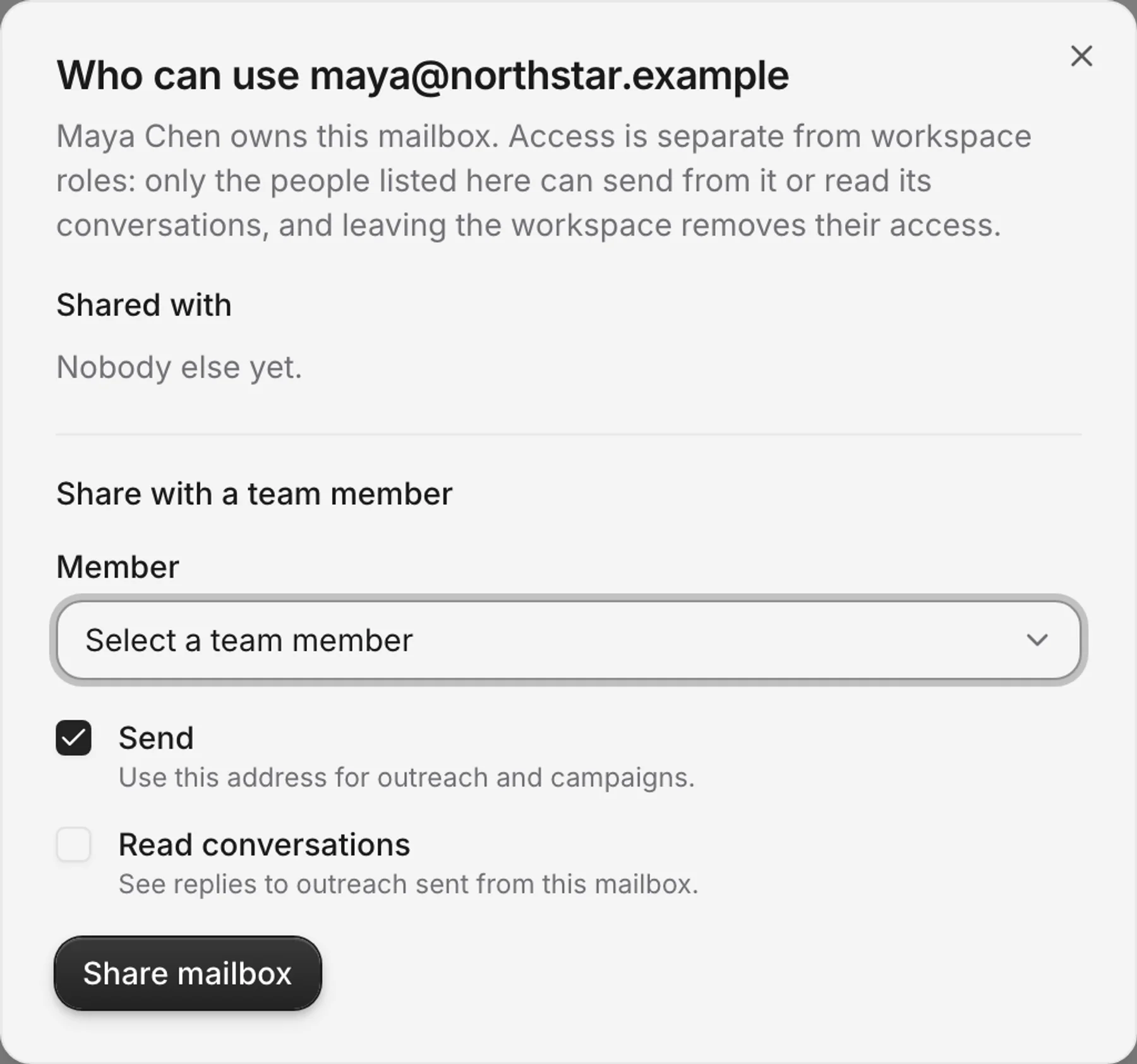
The screenshot shows the actual mailbox access form in the fictional Northstar Studio workspace. Maya is the mailbox owner. The form offers separate sending and reading choices for a teammate. It is a product demonstration, not evidence that a real Microsoft account has authorised another user.
Share the mailbox before handing off a reply
Open Workspace settings → Mailboxes & connections. Open the mailbox’s actions and choose Who can use it. The mailbox owner or an administrator can manage access.
Choose the member under Share with a team member, then select the permissions that match the job:
| Permission | What it gives the teammate |
|---|---|
| Send | Use this address for outreach and campaigns, subject to the other sending checks |
| Read conversations | See replies to outreach sent from the mailbox |
| Neither | No shared access merely because the person belongs to the workspace |
Suppose Maya sends an introduction and Noah will handle the response. Grant Noah read access to the sending mailbox before assigning the prospect. Confirm his access using his account, rather than checking only from Maya’s administrator view. If his work also requires using that address for sending, review that permission separately.
Access ends when someone leaves the workspace. An owner or administrator can also change the mailbox grants while the person remains a member. Recheck grants when a contractor changes clients or a teammate changes responsibilities.
Know what the team inbox contains
Reach-book.com’s Inbox contains replies to outreach threads the app started. Team view shows the conversations the viewer is allowed to read. It does not reveal every email in a connected Gmail or Microsoft 365 account.
Within a conversation, your team can set a reply category, assign a teammate, add internal notes and reminders, and review a suggested reply. Assignment helps organise the work; mailbox read access remains the gate to the conversation. A shared outreach inbox is therefore different from forwarding an entire personal inbox to the whole team.
An SMTP mailbox provides reply sync and a shared view of inbound conversations once you add its IMAP details; without IMAP it supports sending only. Google or Microsoft sign-in provide the same through the provider's own access. If your requirement is an Exchange shared mailbox or a delegated alias, validate that provider setup separately; the sharing controls here concern access within Reach-book.com.
Record an unsubscribe from the conversation
A request to stop may arrive as an ordinary reply. Open the thread, set Reply category to Unsubscribe, and save it. Reach-book.com records the opt-out against the recipient address and stops outreach to that address across the workspace.
For example, Sofia asks Maya not to contact her again. Noah should not be able to continue the same outreach by adding Sofia’s address to his own campaign in the same workspace. The address-level block applies across members, rather than only to Maya’s current sequence.
AI reply sorting can suggest a category, but an unsubscribe suggestion waits for a person to confirm it even when automatic sorting is enabled. Give someone responsibility for checking those suggestions. A message sitting unread or an unconfirmed suggestion is not the same as a recorded opt-out.
Reply checks run every ten minutes by default. A disconnected mailbox or failed sync can delay when your team sees a request. Use Check for replies when reviewing the inbox and investigate mailbox health warnings. Do not describe scheduled reply detection to your team as instant monitoring.
Understand the unsubscribe link
Outreach messages include an unsubscribe footer. Opening its link displays a confirmation page; opening the page alone does not record an opt-out. The recipient confirms the request there. Over HTTPS, Reach-book.com also adds the headers for email clients that support one-click unsubscribe.
Once recorded, the app stores the recipient’s unsubscribe separately from the editable do-not-contact entry. It clears pending follow-up work for matching prospects and stops pending campaign enrollments for that address in the workspace.
That separate record matters if someone later removes the address from Do not contact. Removing the editable entry does not erase the recipient’s opt-out or make the address eligible again. Your team should not use deleting and reimporting a record as a way to restart contact.
Block an address or a whole domain
Managers and administrators can open Do not contact from the workspace menu. Add an email address to block one recipient or a bare domain to block an entire company. Add a reason so another teammate understands the decision. For several entries, paste them one per line.
Use an address-level entry when one person asks to stop. Use a domain-level entry when your team has a reason to exclude the whole organisation, such as a client account that must not receive prospecting messages. Check the spelling and scope before saving, because a domain block affects more people than a single address.
The list blocks sending and mailbox drafts for matching recipients. Bring exclusions from an earlier tool into this list before importing and launching migrated prospects. Keep the original reason where it helps your team understand why the entry exists.
Keep the workspace boundary in mind
These controls apply within one workspace. They do not automatically create a global suppression list shared across independent client workspaces. If your agency operates several workspaces, decide how it will honour requests that concern more than one client or business, and maintain the relevant exclusions in each place.
A block also cannot retract an email that a provider has already accepted. An unsubscribe recorded after a message is in flight stops subsequent outreach; it does not recall the earlier email from the recipient’s inbox. Review the message history when investigating a complaint so you distinguish an already-sent message from a later attempt.
A handoff checklist for your team
Before a teammate takes over, verify their membership and their read access to the original sending mailbox. Assign the prospect and leave a note with the next action. Open the thread from the receiving teammate’s account to confirm that they can see the context.
Before restarting outreach, check the conversation for a request to stop, check the address and domain against your exclusions, and review any existing recipient unsubscribe. Keep those checks in your handoff process, especially when importing older lists or moving work between clients.
For setup details, continue with Microsoft 365 follow-ups. For seats and workspace allowances, use the current pricing page.