Use Microsoft sign-in for automated follow-ups
Open Workspace settings → Mailboxes & connections, choose Connect mailbox, then Sign in with Microsoft. Connect the account you intend to send from and complete the Microsoft permission flow. Your organisation’s sign-in and consent policies may require help from a Microsoft administrator.
Set the mailbox as your Default sender if you want to use it for your outreach. Check the address itself; the account you used to sign into Reach-book.com and the mailbox you use for sending do not have to be the same.
A Microsoft 365 preset in the SMTP form is a different connection method. SMTP supplies outgoing mail settings, and Reach-book.com reads replies for SMTP mailboxes over IMAP. Microsoft has switched off password (Basic) sign-in for IMAP in Exchange Online, so that route cannot give Reach-book.com the reply access it needs to decide whether to send a follow-up. Choose Microsoft sign-in for this workflow and keep SMTP for individual sends.
Check who may send and read replies
A campaign needs a mailbox that supports reply tracking and that the campaign owner can use. In Who can use it, review Send and Read conversations as separate permissions. Giving a teammate a workspace role does not grant access to every connected mailbox.
Suppose Maya writes the first message and Noah covers replies while she is away. Maya’s connection still identifies the sending account. Noah needs the appropriate mailbox access to work with its conversations. Assigning him the prospect records alone is insufficient.
This permission model shares a connected mailbox inside Reach-book.com. It should not be read as a promise that every Exchange shared-mailbox, alias or delegated-send arrangement works through the same sign-in. Test your actual Microsoft account and address before importing a campaign audience. The team inbox guide explains this distinction.
Build a sequence you can review
Open Campaigns and create a draft. In Sequence, add the first email with its subject and body. Keep the question small enough that a recipient can answer without opening an attachment or booking a call first. Then add a follow-up with a delay and a useful new detail.
For example, an agency might send an introduction, wait three days, and offer a short checklist relevant to the prospect. That is an example of a reviewable sequence, not a recommended cadence for every market. Consider relevance, recipient expectations and the rules that apply to the outreach.
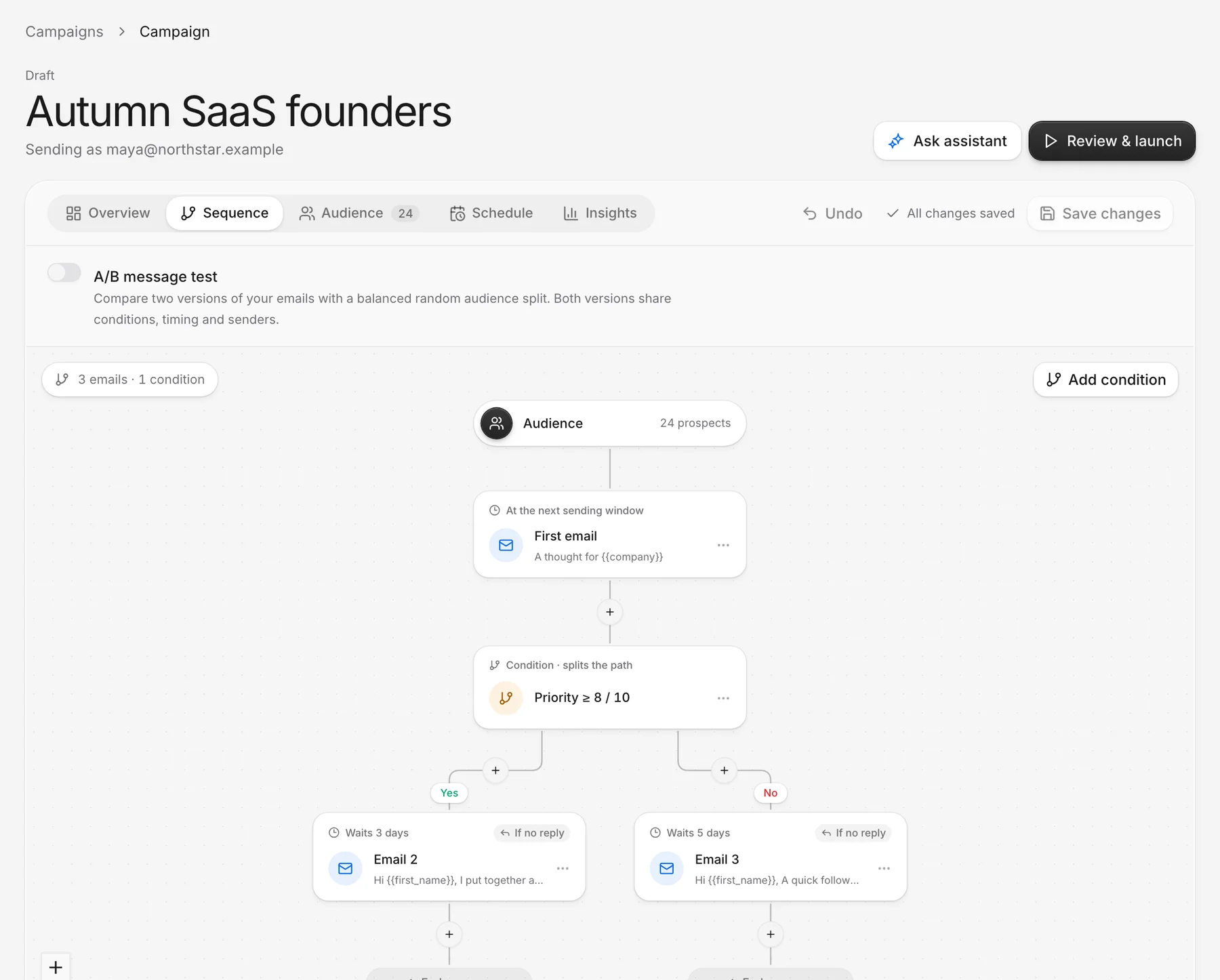
The screenshot shows a different arrangement: a priority condition splits the audience. Prospects who meet the condition wait three days for one follow-up; the other branch waits five days for another. Those are alternative paths, not two messages that everyone receives. Trace each path from the audience before approving it.
The editor supports up to ten email steps. Each follow-up delay is between one and ninety days after the previous step. A campaign audience can include up to 500 prospects and the sender selection can include up to twenty mailboxes. Start with a list small enough for your team to review.
Set the schedule and capacity
Use Schedule to choose the timezone, sending days and time window. Review workspace sending rules and the mailbox’s own daily limit as well. A sequence becoming due does not guarantee that it will send at that exact moment: the sending window, pacing, available capacity and safety checks still apply.
The workspace defaults are fifty messages per member per day and a forty-five-second pause between sends. An administrator can change them. These settings are app controls, not a statement that Microsoft approves a particular outreach volume or that the recipient will see the email in their inbox.
Review the audience before launch
In Audience, check who will receive the messages and inspect any skipped prospects. Resolve address, suppression or mailbox issues before you launch. Keep opt-outs from earlier tools on the do-not-contact list before adding a migrated audience.
Use Review & launch, confirm that you reviewed the audience and messages, and then launch. Reach-book.com freezes the approved messages for enrolled prospects. Later edits to the campaign do not rewrite messages that have already been approved for them. This matters if your agency changes its offer after launching a campaign.
Test the workflow with a mailbox you control first. Confirm the sender address and review how the message appears in the recipient’s email client. Then reply and check that the response appears in Reach-book.com before relying on automated follow-ups for a larger audience.
Understand when follow-ups stop
| Event | What happens in Reach-book.com |
|---|---|
| A human reply is detected | The sequence stops for that prospect |
| A bounce is detected | Further follow-ups stop |
| An unsubscribe is recorded | The address is blocked across the workspace |
| An out-of-office reply is detected | Follow-ups pause until the detected return date, or seven days if none is found; an absence over sixty days stops the sequence |
| The address or domain is suppressed | Further sending is blocked |
| Delivery cannot be confirmed | The mailbox pauses for review; the uncertain send is not retried automatically |
Reply detection depends on mailbox access and successful sync. Checks run every ten minutes by default, and Check for replies requests a check from Inbox. Do not treat the interface as an instant reflection of every message arriving at Microsoft. Keep an eye on disconnected or paused mailboxes, especially after changes to account access.
The app reads replies to outreach threads it started. It is not a replacement for your complete Outlook inbox. Messages unrelated to those threads do not become part of this outreach workflow.
Hand the conversation to a person
After a reply, open the thread, read the context and decide what to do next. Set the reply category, assign a teammate and leave an internal note. An AI reply suggestion remains a draft for someone to review. For a clear request to stop, choose Unsubscribe and save it rather than treating it as an objection to overcome.
For an uncertain delivery, inspect the sending account and mailbox health before resuming. For a disconnected account, reconnect through Microsoft sign-in and check access again. Do not start a replacement campaign to work around a paused mailbox; first establish what happened to the original message.
See the follow-up writing guide for message ideas, or compare plans once you have tested the sending and reply workflow with your own Microsoft 365 account.